Map the category once
Assign an approval set on the Claim Type. Future submissions use that mapping without updating each employee record.
Send mileage to the Fleet Manager and travel to Finance. Give the same claim type a different approval set for Directors, Executives or other employee types, with one central configuration.
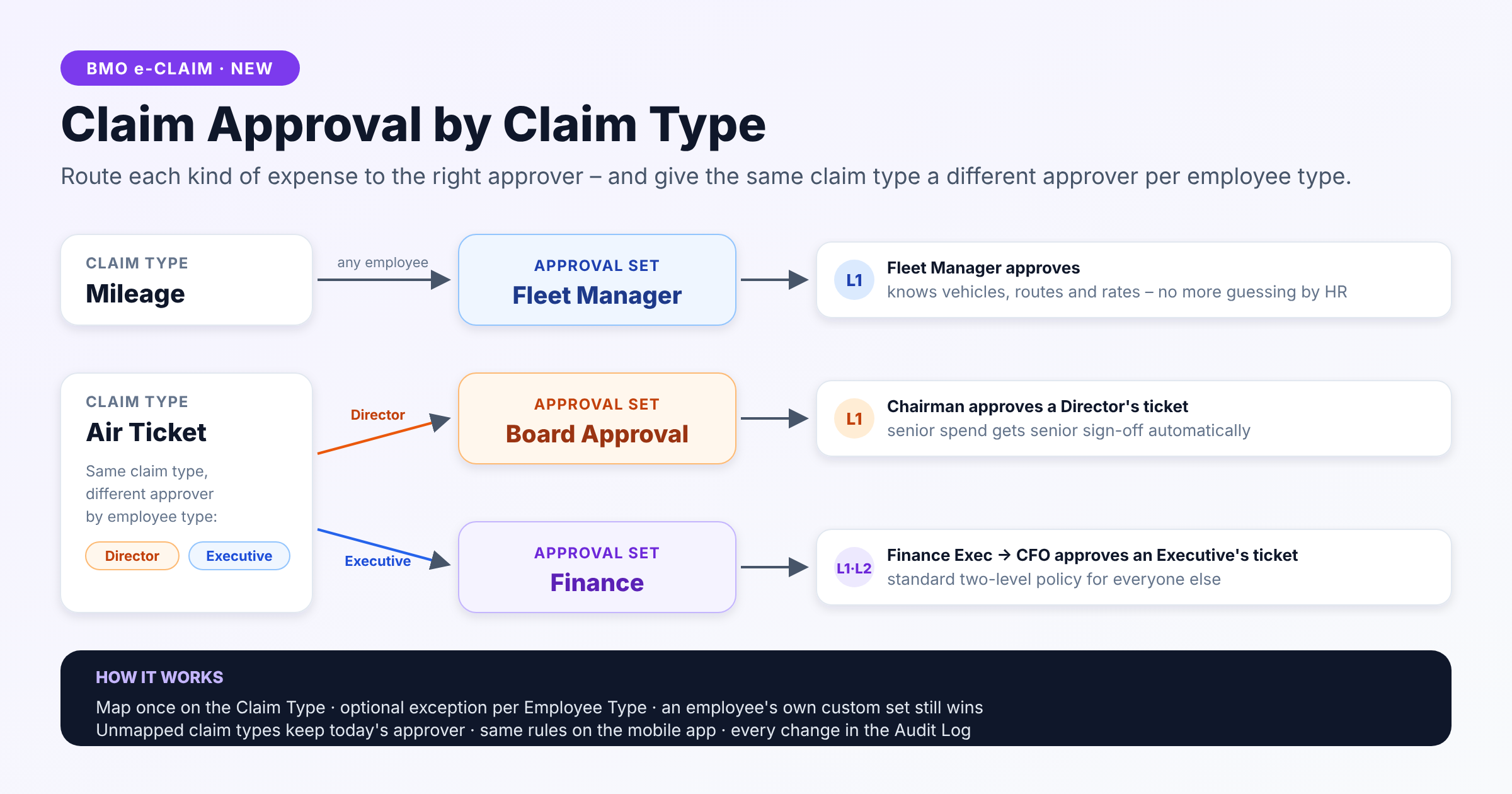
Set Air Ticket to Finance for all employee types, then add a Director exception for Board Approval. Everyone else follows Finance unless their own custom approval set takes priority.
Specialist review for vehicle expenses
Employee-type exception
Main approval set for this claim type
Assign an approval set on the Claim Type. Future submissions use that mapping without updating each employee record.
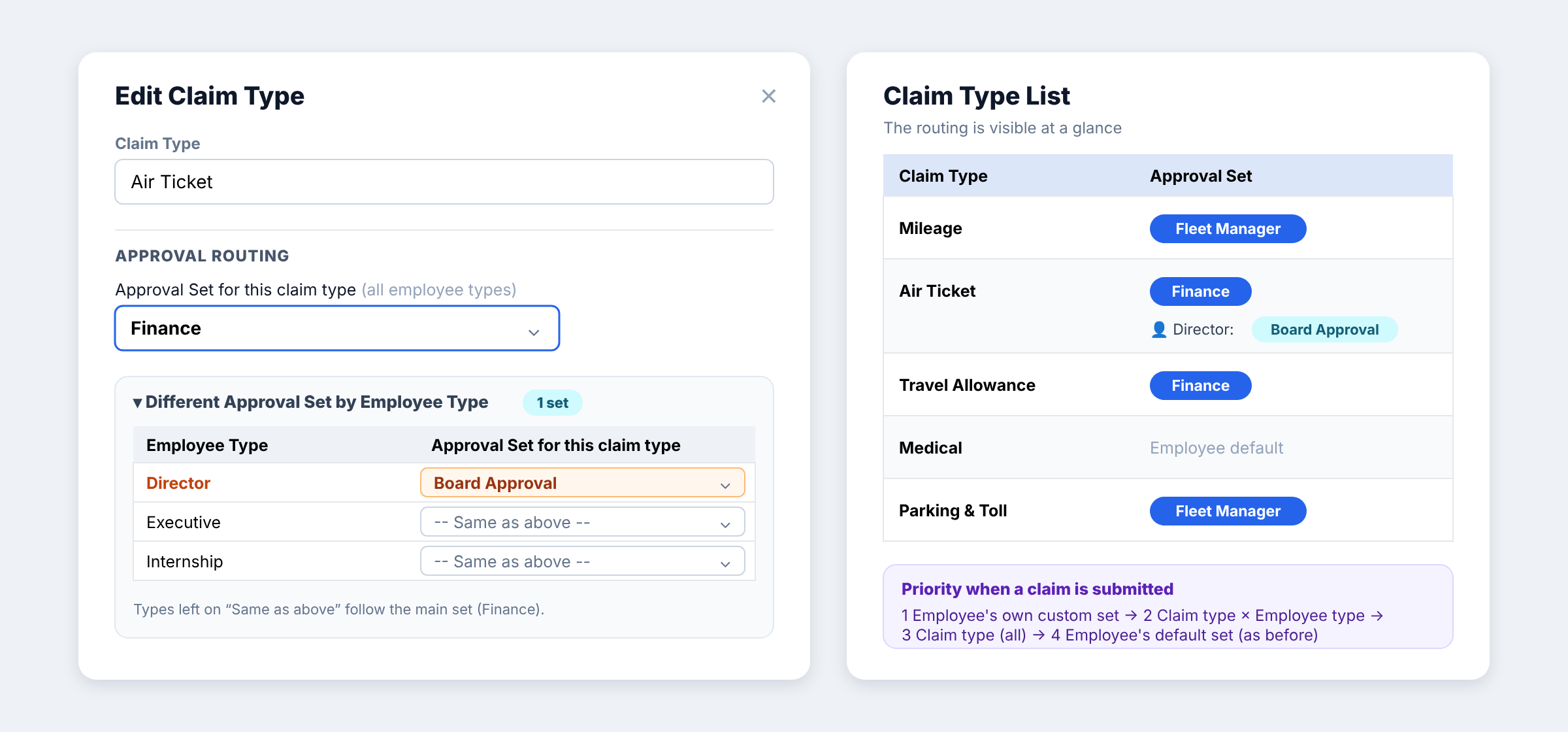
Use a different set for selected employee types, such as Board Approval for a Director’s Air Ticket. Types left on “Same as above” follow the main claim-type set.
The Approval Table on the claim form switches to the mapped approvers as soon as the employee selects a claim type, before submission.
After the first claim line is selected, only claim types with the same approvers are offered. Claim types with different approval chains must be submitted separately. Web and mobile follow the same rule.
Mapping changes apply from the next claim. Claims that are already pending keep the approvers they were submitted with.
The Claim Type list shows mappings and employee-type exceptions. Changes are recorded in the Audit Log, and an approval set cannot be deleted while a claim type still routes to it.
The system uses the first applicable rule in this order. Existing personal exceptions retain priority.
A personal exception takes priority over all claim-type mappings.
Use the exception configured for this employee type.
Use the main approval set assigned to the claim type.
Use the existing default when no higher-priority mapping applies.
Enable routing for your company, then map claim types to existing approval sets.
Each feature is switched on separately per company. Ask our team if you need help matching the settings to your policy.
Ask about your setupGo to Company Info › HRM › Claim and set “Claim Approval By Claim Type” to Yes.
Open e-Claim › Claim Type › Edit › Approval Routing and select an Approval Set. If needed, open “Different Approval Set by Employee Type” and configure the exceptions.
Apply a claim and select the claim type. Check that the Approval Table shows the intended approvers before submitting, including any employee-specific priority.
They continue to use the employee’s default approval set, unless the employee has a custom approval set. You can map only the categories that need a different route.
Yes, if they resolve to the same approvers for that employee. If the approval chains differ, submit them as separate claims. The form filters the available claim types after the first line is chosen.
No. The employee’s own custom set has the highest priority, ahead of employee-type exceptions, the main claim-type set and the employee’s default set.
No. Pending claims keep the approvers assigned when they were submitted. Updated mappings apply from the next claim.
Yes. The mobile app uses the same routing priorities and one-approval-chain rule. Companies that leave the feature disabled retain their existing behaviour.
Show us your budget and approval requirements. We’ll walk you through the eClaim setup.